Foks-Explorer

FOKS encrypted git hosting, Key-Value Store, and more. Currently, in Beta mode.
FOKS Overview
FOKS (Federated Open Key Service) is in beta. Current functionality provided is:
End-to-End Post-Quantum Encrypted Git Hosting.
End-to-End Post-Quantum Encrypted Key-Value Store.
Federated and Generalized Team Management.
Device Management with Full YubiKey Support.
See Foks.pub for a more detailed overview of FOKS.
For this journey, I'm primarily interested in the Key-Value Store feature and integrating it's usage into my daily routine. So far I've accomplished the following:
Foks-Explorer a web interface with integration to the FOKS Key-Value Store.
PSFoks a powershell module executing FOKS kv cli commands.
FoksApi a powershell script executing FOKS kv cli commands.
There is a FOKS User Guide documentation in the works called Foks Book where others are contributing their knowledge on the usage of FOKS.
The remainder of the document outlines the integration work I've performed using FOKS on Linux with PowerShell.
FOKS Installation and Setup
Follow these steps to install and get the basics of using FOKS.
Initial Installation of FOKS
curl -fsSL https://pkgs.foks.pub/install.sh | shThis will install both the FOKS binary and the FOKS agent.
  PS> foks ctl status
    foks agent is in state: active running

  PS> which foks
    /usr/bin/foks

  PS> Get-Process -Name foks
    NPM(K) PM(M) WS(M) CPU(s) Id SI ProcessName
    ------ ----- ----- ------ -- -- -----------
    0 37.25 34.20 40.25 3665 …65 foks

  PS> Get-Command foks
    CommandType Name Version Source
    ----------- ---- ------- ------
    Application foks 0.0.0.0 /usr/bin/foks
Subsequent installs/updates
PS> apt-get install foksFOKS signup
The signup process is for gaining access to the hosting service foks.app.
Choose the foks.app home server in the signup process. If a invite code is requested use: cczjho9r
PS> foks signupTo upgrade to a paid hosting plan. The following command will generate a URL for accessing the FOKS Web Admin Panel.
PS> foks admin webFOKS Command Line Basics
Just some basic CLI examples to get you started.
Overview of all the commands
PS> foks --helpFor the FOKS Key-Value Store commands, one is dealing with a structure that is nearly identical to that of dealing with file systems.
All Key/Value paths start with the root path / and the last node or value in the path is called the Key.
For instance, /mynode/tom/api, api is the key to the associated value assigned to it. The simplest command to create this keypath is
PS> foks kv put /mynode/tom/api apivalue -p --forceThe keypath is /mynode/tom/api where api is the key and apivalue is the value assigned to the key.
The -p flag will create all missing names in the path if needed and –force flag will overwrite that keypath if it already exists.
To retrieve the value in this keypath:
PS> foks kv get /mynode/tom/api
apivalue
To list all existing kv paths:
PS> foks kv ls /Adding a second device
The same KV store data can be accessed from multiple devices (computers), if desired.
On the new device, install FOKS.
On the original device that FOKS was installed on.
PS> foks key assistThis prints passphrase to the console. Leave this console up until the new device has been associated to your FOKS account.
On the new device:
PS> foks key newSelect a server, enter username, enter device name. this also prints a passphrase, leave it on the screen
Now on either device, type in the passphrase from the other device.
Once this process has been completed both devices will now have access to the same KV store data.
Setting up a passphrase
To control access to your FOKS KV store data, one can create a passphrase.
PS> foks passphrase --help
  Available Commands:
  change change passphrase
  set set a new passphrase
  unlock unlock local credentials with a passphrase

PS> foks passphrase set
IF YOU FORGET OR LOSE YOUR PASSPHRASE YOUR DATA IS LOST!
To lock access to your FOKS KV store data
PS> foks key lockTo unlock
PS> foks passphrase unlockIf you shutdown your computer, FOKS becomes locked by default.
Git Operations
Another extremely useful feature of FOKS is Encrypted Git Hosting.
For the powershell work I've done so far in testing FOKS, I've created a git repository.
Create a FOKS team foks_apps:
PS> foks team create foks_appsCreate a git repository:
  PS> foks git create FoksApi --team foks_apps
  Created: foks://foks.app/t:foks_apps/foksapi
Anyone who is a member of the foks_apps team has access to this repository.
Team invite code is:
YcarI5JTMATAp1tJ4E5RIM5QgKVyeJ0HGsMgB9HRXNrVnXlrlcUcDH9nDkQR7QomaTpSqhU0Veue
Dw2w0zC7uK5jlsI61PcVSCanF
To setup the local git repository on my system, I did the following.
PS> cd $HOME
PS> mkdir git-foks
PS> cd git-foks
PS> git clone foks://foks.app/t:foks_apps/foksapi
Now with all any coding work being done with VScode, it can be committed to the git repository as needed.
**IMPORTANT REMINDER THIS SOFTWARE IS IN BETA TESTING LIMIT YOUR USAGE TO TEST DATA ONLY**
FOKS PowerShell Automation
Below are several PowerShell projects that have automated the use of FOKS
Foks-Explorer Overview
FOKS-Explorer is a Web site that is hosted on a local a computer that supports the key-value store features implemented by FOKS.
The Web site is built using Pode.web which allows one to build web pages purely with PowerShell - no HTML, CSS, or JavaScript knowledge required.
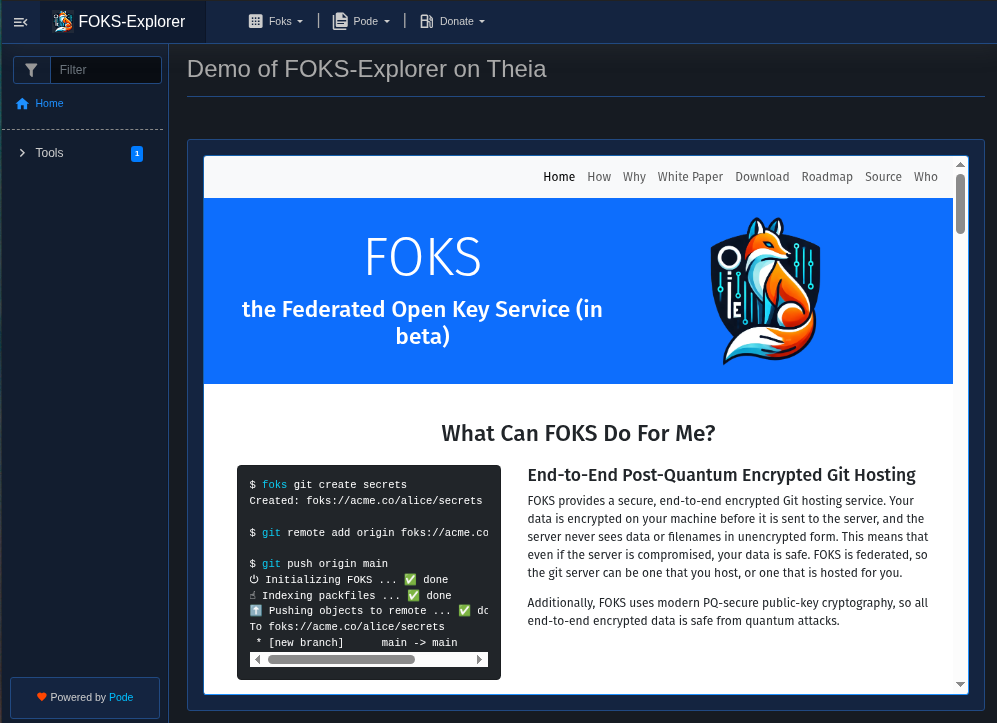
FOKS-Explorer Home
The home page appears as follows:
Selecting FOKS-Explorer from Tools in the navigation panel displays.
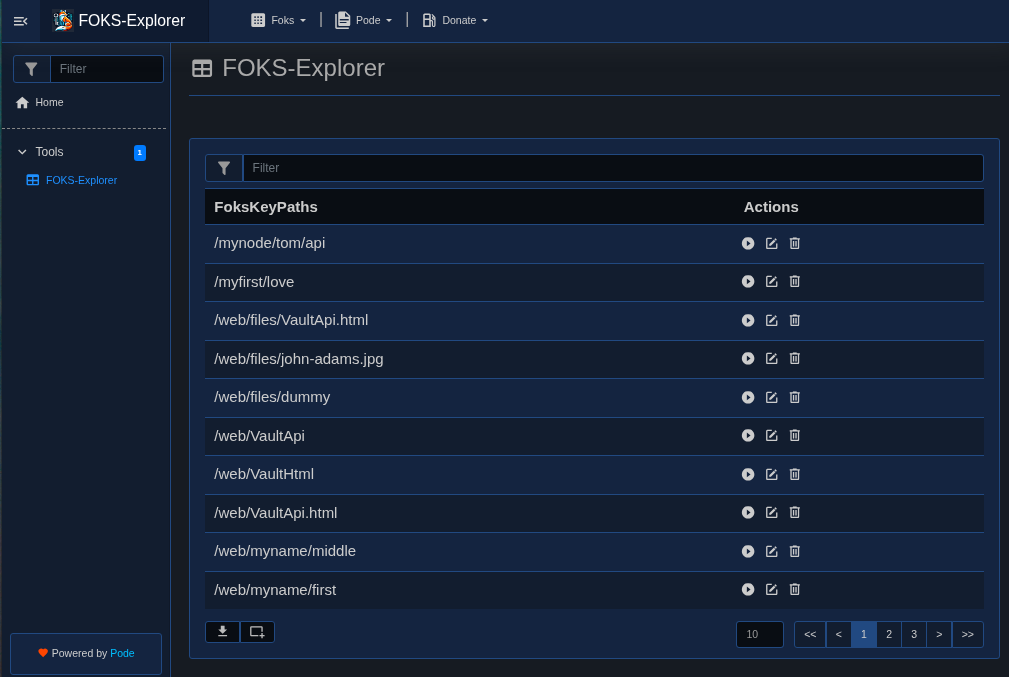
At the top of web page is a Filter icon, that is used to limit the key-value paths to be displayed below. By default, all key-value paths are displayed.
Each row lists a key-value path where the last item in the path is the Key followed by 3 icons.
Click on the Play icon (first icon) to copy the value of the key to the clipboard.
Clicking on the second icon provides a menu for changing the value of key.
Clicking on the Trash Icon deletes the key and value from FOKS.
At the bottom left of the table is an Export Icon and an Add Entry icon.
At the bottom right of the table is a set of controls used to navigate through the list of key-value entries.
PSFoks Module Overview
A PowerShell 7 module implementing FOKS KV store functionality to support a Web interface called, Foks-Explorer.
This module is functional on either Windows, Linux, or MacOS operating systems where PowerShell 7 is supported.
PS> Get-Command -module PKFoksThis command will provide the following output.
CommandType Name              Version Source
---------- ----              ------- ------
Alias       Foks-Bye            0.0.1 PSFoks
Alias       Foks-ConsoleLog     0.0.1 PSFoks
Function    Add-FoksKeyValue    0.0.1 PSFoks
Function    Clear-FoksConsole   0.0.1 PSFoks
Function    Edit-FoksKeyValue   0.0.1 PSFoks
Function    Get-FoksConsole     0.0.1 PSFoks
Function    Get-FoksKeyValue    0.0.1 PSFoks
Function    Get-FoksModKeyPaths 0.0.1 PSFoks
Function    Remove-FoksKeyValue 0.0.1 PSFoks
Function    Set-FoksPassPhrase  0.0.1 PSFoks
To get help on individual functions within PSFoks.
PS> Get-Help Get-FoksModKeyPath -fullFoksApi Overview
The primary focus is to provide programmatic access to the key/value store functionality implemented by FOKS.
Currently, the foks command line interface is being used with the thought of migrating to a REST Api as some future date.
To follow the examples below, you'll need a working version of FOKS and PowerShell installed.
This script has been develop and tested on Linux in an OS neutral manner so should be working on all platforms.
FoksApi Commands
KeyPaths - Generate a list of current key/value pairs
FindPaths - List keys matching search expression
Create - Create a key/value pair
Get - Copy the value of a key/value pair to the clipboard
Update - Update a key/value pair with a new value
Remove - Remove a key/value pair
Lock - Require a passphrase to unlock FOKS
Usage - Display Server Usage Info
passPhrase - Set, Change, or Unlock the passphrase
SetRandomValue - Random 20 char passphrase created in the clipboard
Usage - Display Server Usage Info
Creating a KV Entry
PS> FoksApi Create /myfirst/love dontkissandtell
Created /myfirst/love/
By default the last item name in the path is the key. If it is desired to have a different key name associated with the path, then the -kvkey parameter can be used.
PS> FoksApi Create -kvpath /myfirst -kvalue dontkissandtell -kvkey loveThis command is yeilds the same results as the prior example.
If the value has embedded spaces or characters that need to be escaped, then the value should be in single quotation marks.
Updating KV Entry
PS> FoksApi Update /myfirst/love Traci
pdated /myfirst/love/
Lets update the value with a 20 character randomized value.
PS> FoksApi Update /myfirst/love SetRandomValue
Updated /myfirst/love/
Get a KV value
PS> FoksApi Get /myfirst/loveThe associated value is copied to the clipboard.
List KV Entries
Once one has a large collection of key/value pairs, there is easy way to list your key/value entries.
PS> FoksApi KeyPaths
$HOME/FoksPaths.txt new file created
The file generated is a dump of all the current key/value pairs.
To list all key/value pairs to the console:
PS> FoksApi FindPathsTo search for specific paths:
PS> FoksApi FindPaths myfirst
/myfirst/love
Securing the FOKS implementation
Once the FOKS system is no longer being actively used, it is wise to lock down FOKS with a passPhrase to keep it secure.
Set a passphrase for FOKS. Note the example below is using the foks cli.
PS> foks passphrase setDON'T LOSE YOUR PASSPHRASE
A secure passphrase can be generated as follows:
PS> FoksApi SetRandomValueThe generated random value is copied to the clipboard.
Enter the following command to lock the FOKS implementation:
PS> FoksApi LockOn each execution of FoksApi, it will check if FOKS is locked and prompt for a passphrase to unlock.
Foks-Explorer Installation and Setup
Donate & Download to get all the bits in a zip file.
Get Foks-Explorer from git repositories
Foks-Explorer, PSFoks Module, and FoksApi exist in a Foks git respository, foksapi where members in the team foks_apps have access.
To join the FOKS team, foks_app:
PS> $inviteCode = "YcarI5JTMATAp1tJ4E5RIM5QgKVyeJ0HGsMgB9HRXNrVnXlrlcUcDH9nDkQR7QomaTpSqhU0VeueDw2w0zC7uK5jlsI61PcVSCanF"
PS> foks team accept $inviteCode
I or one of the team owners will need to respond with a foks team accept to accept your invitation.
If you are using Keybase then join the foks_book team to let me or someone know an invite is pending.
This code is mirrored on GitHub too.
Install PowerShell on Linux
PowerShell Installation
###################################
# Prerequisites
# Update the list of packages
sudo apt-get update

# Install pre-requisite packages.
sudo apt-get install -y wget apt-transport-https software-properties-common

# Get the version of Ubuntu
source /etc/os-release

# Download the Microsoft repository keys
wget -q https://packages.microsoft.com/config/ubuntu/$VERSION_ID/packages-microsoft-prod.deb

# Register the Microsoft repository keys
sudo dpkg -i packages-microsoft-prod.deb

# Delete the Microsoft repository keys file
rm packages-microsoft-prod.deb

# Update the list of packages after we added packages.microsoft.com
sudo apt-get update

###################################
# Install PowerShell
sudo apt-get install -y powershell

# Start PowerShell
pwsh
At the time I decided to migrate to Linux from Windows, I had a large time investment in learning PowerShell so I decided to give PowerShell a try on Linux. Now after several years of predominately using Linux, I almost exclusively find myself using the PowerShell environment.
For me, one of the big attractions to using PowerShell is that the same code it will run on Linux, MacOS, and Window. One does need to code PowerShell in a OS neutral manner for this to work
Install Gpaste for clipboard functionality
PS> sudo apt install xclip xsel
PS> sudo apt install gpaste
Install Foks-Explorer dependancies
Installation of Pode Modules
Pode module
PS> Install-Module PodePode.Web module
PS> Install-Module Pode.webMicrosoft.PowerShell.ConsoleGuiTools
PS> Install-Module Microsoft.PowerShell.ConsoleGuiToolsInstallation of PSFoks Module
Copy the PSFoks directory to the default module installation location on your OS. On Linux, this location is $HOME/.local/share/powershell/modules.
Install Foks-Explorer
Copy the Foks-Explorer directory to your home directory path $HOME/Foks-Explorer
Next the $HOME/Foks-Explorer path needs to be added to your system environment PATH variable.
The easiest way to do this is to update your powershell profile.
To find your default profile file:
PS> $profile
$HOME/.config/powershell/Microsoft.PowerShell_profile.ps1
Add the following line to your profile.
$env:PATH += ":$HOME/Foks-Explorer"Starting Foks-Explorer
In a PowerShell console session enter:
Start-FoksExplorer

Checking if FOKS is Locked
Retrieving one-time password for Foks-Explorer
Starting Foks-Explorer Web Interface: foks-explorer.ps1
Listening on the following 1 endpoint(s) [1 thread(s)]:
  - http://localhost:23007
Now Ctrl-Click on the URL listed in the console to open the Foks-Explorer Web Interface.
Configure Foks-Explorer
The configuration of Foks-Explorer can be changed by editing the file FOKS-Explorer.xml in the data directory.
<PodeWebCfg>
  <title>FOKS-Explorer</title>
  <address>localhost</address>
  <port>23007</port>
  <protocol>http</protocol>
  <authenticate>0</authenticate>
  <duration>60</duration>
  <logo>/pode.web/images/foks.jpg</logo>
  <logo1>/pode.web/images/DeatonCoatOfArms-1.jpg</logo1>
  <background>/pode.web/images/Bow-Lightening.png</background>
</PodeWebCfg>
By default, the web interface doesn't require any authentication because <authenticate> is set to zero.
When <authenticate> is set to “2”, The Foks-Explorer page will require authentication but the home page will not.
The authentication process implemented is a one-time password scheme using FOKS. An keypath entry of /apps/Foks-Explorer/<$env:USERNAME>/OTPW must be created for each user for authentication to succeed.
After successful authentication the OTPW key is updated with a new random 20 character password.
When Start-FoksExplorer is first launched, it will automatically copy the OTPW key value to the clipboard.