VboxShutdown Service

VboxShutdown Service shuts down VirtualBox Guests in a savedstate prior to a power outage event when using CyberPower's UPS Battery Backup.
CyberPower SX950U Battery Backup
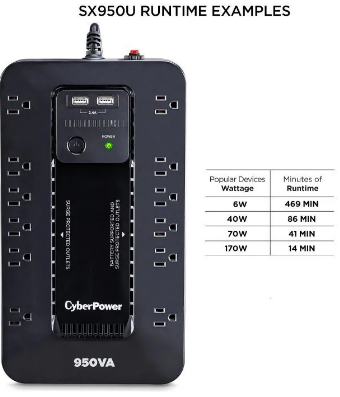
Attached to the above UPS is my Linux Desktop (POP!_OS) 22.04, Monitor, router, and a cable modem which is consuming about 150 Watts. This is providing about 16 minutes of runtime during a power failure.
At a minimum there are 3 virtual machines always running and at times this number can grow to 5 or 6 VMs.
If I was seating at the keyboard when a power failure happened, I would be hard pressed to shutdown everything gracefully before the battery capacity was consumed.
Fortunately, CyberPower provides Power Panel software for automating the shutdown process and included with the UPS unit is a USB cable that can be attached to the desktop for monitoring purposes.
Here is the link for Downloading Power Panel
Power Panel Personal Installation and Setup
Follow these steps to install and get the basics of using Power Panel Personal.
Before proceeding be sure to connect the USB cable from the UPS to your desktop.
Initial Installation of Power Panel Personal
  PS> cd Downloads
  PS> sudo apt update
  PS> sudo apt-get install ./PPL_64bit_v1.4.1.deb
This will install both the pwrstat and the pwrstatd daemon.
  PS> which pwrstat
    /usr/sbin/pwrstat

  PS> which pwrstatd
    /usr/sbin/pwrstatd
Verify the pwrstatd daemon service is running.
  PS> systemctl status pwrstatd

  You should be seeing a similar response as the following.
  ● pwrstatd.service - The monitor UPS software.
    Loaded: loaded (/etc/systemd/system/pwrstatd.service; enabled; vendor preset: enabled)
    Active: active (running) since Fri 2025-10-31 16:37:54 PDT; 4 days ago
  Main PID: 2397 (pwrstatd)
  ...
Verify that the Linux system has detected the UPS device.
On POP!_OS, it comes pre-installed with the upower software.
List battery power info for all devices
  PS> upower -d

  You should be seeing a device similar to the following:

  Device: /org/freedesktop/UPower/devices/ups_hiddev4
  native-path:          /sys/devices/pci0000:00/0000:00:02.1/0000:02:00.0/0000:03:0c.0/0000:0a:00.0/usb1/1-10/1-10:1.0/usbmisc/hiddev4
  vendor:               CPS
  model:                ST Series
  power supply:         yes
  updated:              Wed 05 Nov 2025 10:26:22 AM PST (19 seconds ago)
  has history:          yes
  has statistics:       yes
  ups
    present:             yes
    state:               fully-charged
    warning-level:       none
    time to empty:       15.4 minutes
    percentage:          100%
    icon-name:          'battery-full-charged-symbolic'
Configuring Power Panel Personal
Power Panel provides two configurable alerts Power Failure and Low Battery for automating the shutdown process.
The default settings are:
  pwrstat -pwrfail -delay 60 -active on -cmd /etc/pwrstatd-powerfail.sh -duration 1 -shutdown on

  pwrstat -lowbatt -runtime 300 –capacity 35 -active on -cmd /etc/pwrstatd-lowbatt.sh -duration 1 -shutdown on
These default settings are not very useful because 60 seconds after the power fails the Power Failure trigger is activated and the desktop is shutdown gracefully. The default scripts referenced in the config settings simply send email notications.
On my Desktop, I changed this configuration to:
  pwrstat -pwrfail -delay 840 -active on -cmd /etc/pwrstatd-vmshutdown.ps1 -duration 10 -shutdown on

  pwrstat -lowbatt -runtime 240 -capacity 15 -active on -cmd /etc/pwrstatd-vmshutdown.ps1 -duration 10 -shutdown on
With these configuration settings, the Low Battery alert will always be triggered prior to the Power Failure alert to shut down the desktop. I created the script pwrstatd-vmshutdown to shutdown the VMs in a savestate prior to shutting down the desktop.
Unfortunally, Power Panel fails to invoke the script to shutdown the Virtual Machines prior to shutting down the desktop. So I wrote my own systemd service called VboxShutdown that will shutdown the VMs prior to the Low Battery alert activation.
To view the current status of the UPS:
  PS> sudo pwrstat -status

  The UPS information shows as following:

  Properties:
    Model Name................... ST Series
    Firmware Number.............. BF02205B5F5.y
    Rating Voltage............... 120 V
    Rating Power................. 510 Watt

  Current UPS status:
    State........................ Normal
    Power Supply by.............. Utility Power
    Utility Voltage.............. 118 V
    Output Voltage............... 118 V
    Battery Capacity............. 100 %
    Remaining Runtime............ 15 min.
    Load......................... 147 Watt(29 %)
    Test Result.................. Passed at 2025/10/30 14:27:31
    Last Power Event............. Blackout at 2025/11/02 11:35:00 for 3 min.
To view the current configuation of the UPS:
  PS> sudo pwrstat -config

  Daemon Configuration:

  Alarm .............................................. On
  Hibernate .......................................... Off
  Cloud .............................................. Off

  Action for Power Failure:

    Delay time since Power failure ............. 840 sec.
    Run script command ......................... On
    Path of script command ..................... /etc/pwrstatd-vmshutdown.ps1
    Duration of command running ................ 10 sec.
    Enable shutdown system ..................... On

  Action for Battery Low:

    Remaining runtime threshold ................ 240 sec.
    Battery capacity threshold ................. 15 %.
    Run script command ......................... On
    Path of command ............................ /etc/pwrstatd-vmshutdown.ps1
    Duration of command running ................ 10 sec.
    Enable shutdown system ..................... On
See the next section VboxShutdown Service, if you need to shutdown your Virtual Machines gracefully before the desktop is shutdown.
VboxShutdown Service Installation and Setup
VboxShutdown is a Powershell script that will shutdown VirtualBox VMs in a savedstate prior to the desktop being shutdown. It can be ran in a terminal session or configured as systemd service.
VboxShutdown executes pwrstat -status every 60 seconds to determine if the VMs needs to be shutdown prior to the Low Battery event being activated.
Install VboxShutdown script
Download VboxShutdown from the BarnYard Market
Unzip the contents of the downloaded file and copy VboxShutdown.ps1 to any desired location. Open VboxShutbox script with any editor to review the code.
By default, VboxShutdown will write events to the file, VboxShutdown.log to your home directory.
VboxShutdown accepts the following parameters when executed and the defaults are:
  runlimit -  The number of minutes remaining on battery power. Default  8.0 Minutes
  pctlimit -  The percentage of battery power remaining.        Default 20.0 Percent
  log      -  /home/_username_/VboxShutdown.log                 Default $HOME Path
When any of the limits fall below their setting value, all VirtualBox VMs will be shutdown in a savedstate.
Executed as script in a Terminal session.
  PS> VboxShutdown.ps1
  [sudo] password for <username>:

  Output messages are displayed on the terminal and recorded in the log.
  20251102_091835: UPS state Normal
In the example above, a prompt to enter the sudo password was presented because the sudoers file has not been configured to allow no password entry.
To get help information on VboxShutdown.ps1
PS> Get-Help VboxShutdown.ps1 -fullInstall PowerShell on Linux
PowerShell Installation
###################################
# Prerequisites
# Update the list of packages
sudo apt-get update

# Install pre-requisite packages.
sudo apt-get install -y wget apt-transport-https software-properties-common

# Get the version of Ubuntu
source /etc/os-release

# Download the Microsoft repository keys
wget -q https://packages.microsoft.com/config/ubuntu/$VERSION_ID/packages-microsoft-prod.deb

# Register the Microsoft repository keys
sudo dpkg -i packages-microsoft-prod.deb

# Delete the Microsoft repository keys file
rm packages-microsoft-prod.deb

# Update the list of packages after we added packages.microsoft.com
sudo apt-get update

###################################
# Install PowerShell
sudo apt-get install -y powershell

# Start PowerShell
pwsh
Configuring VboxShutdown in the sudoers file
The pwrstat binary must be executed with sudo, so it is necessary to configure sudo to allow VboxShutdown script to be executed without entering a password each time.
Add the Cmnd_Alias entry shown below to your sudoers file.
PS> sudo visudo

# Cmnd alias specification
Cmnd_Alias VBOXSHUTDOWN = /home/_username_/ps/VboxShutdown.ps1
This setting allows the script, VboxShutdown.ps1 to be executed without prompting for the sudo password.
VboxShutdown doesn't care which path it is located at so locate it where ever you want and be sure to specify the correct path in your sudoers file.
Note you'll need to log out and in again before this change takes effect.
Configuring VboxShutdown as a systemd Service
For me, it makes more sense to run VboxShutdown as a systemd Service and have it restarted automatically with the desktop is rebooted.
To see the current running systemd services:
  PS> systemctl list-units --type=service --state=running

  UNIT                                LOAD   ACTIVE SUB     DESCRIPTION
  accounts-daemon.service             loaded active running Accounts Service
  acpid.service                       loaded active running ACPI event daemon
  atd.service                         loaded active running Deferred execution scheduler
  avahi-daemon.service                loaded active running Avahi mDNS/DNS-SD Stack
  bluetooth.service                   loaded active running Bluetooth service
Create VboxShutdown service unit file
Now, a service unit file needs to be created for VboxShutdown service. Open any desired editor and copy the following contents to it.
  [Unit]
  Description=Shutdown VirtualBox Guests in a savedstate prior to a power outage
  After=network-online.target
  After=pwrstatd.service

  [Service]
  ExecStart=/usr/bin/pwsh /home/_username_/ps/VboxShutdown.ps1

  [Install]
  WantedBy=multi-user.target
The path in the ExecStart entry will need to be to the correct path location of VboxShutdown on your desktop.
Now save the file as VboxShutdown.service.
Copy VboxShutdown.service to the service unit path
  PS> cd $HOME/ps
  PS> sudo cp VboxShutdown.service /etc/systemd/system/VboxShutdown.service
Reload the systemd manager configuration:
PS> sudo systemctl daemon-reloadStart VboxShutdown service
PS> sudo systemctl start VboxShutdown.serviceEnable the VboxShutdown service to start at boot
PS> sudo systemctl enable VboxShutdown.serviceCheck the status of the VboxShutdown service
PS> systemctl status VboxShutdown.serviceVboxShutdown.service should now be in a running state.
| Version | Date | Whom | Notes | |
|---|---|---|---|---|
| 0.1.3 | 11-06-2025 | cadayton | Add log parameter to set log file path. Default is $HOME | |
| 0.1.2 | 11-03-2025 | cadayton | Doc clean up. Removed function Get-UPSattribute-upower | |
| 0.1.1 | 11-02-2025 | cadayton | Enabled systemd VboxShutdown.service | |
| 0.1.0 | 11-01-2025 | cadayton | Initial Release |